Tuesday, November 2, 2010

Mechanical Man’s Mission to the Moon

$150 billion can buy a lot of food, houses, cars, clothes--anything--or it could buy one trip to the moon with a crew of astronauts. Last September, Congress deemed that risk too high, and decided to cancel the program. But hope still remains in the form of a metal man.

An artist's rendition of Robonaut on the moon.

For approximately $200 million, plus $250 million for a rocket, the National Aeronautics and Space Administration (NASA) engineers at the Johnson Space Center in Houston can build a humanoid robot which runs on batteries and send it to the moon to take measurements and conduct experiments. This robot would never have to sleep, eat, or stop working-it could be the most efficient researcher of all time. Its name would be its mission: Project M.

Perhaps the most ambitious part of this project is that NASA believes it can accomplish this goal in 1,000 days, or a little under 3 years. Project M’s manager, R. Matthew Ondler, explained that this intense deadline “creates this sense of urgency. NASA is at its best when it has a short time to figure out things. You give us six or seven years to think about something, and we’re not so good.“ That time allows for too many external variables to occur and slow the process even further, costing more money and detracting from other possible research paths.

Of course, another advantage to having such a major project completed in a relatively short amount of time is the amount of impact it can have, and the effect of that impact. For example the 1969 Moon Walk inspired a large amount of young students to grow up and study astrophysics and engineering. In recent years, science and math studies have waned in popularity, and NASA hopes that with the success of this project will come a new wave of excited, young minds.

The crew of Apollo 11, the first men on the moon.

Stephen J. Altemus, the chief engineer at Johnson Space Center, stressed that NASA is “doing impossible things with really very little, if any, money whatsoever,” and that the restrictions of Congress could put a hold on their plans. This raises some interesting questions about what happens to NASA if there is not enough money in the Federal Budget to sustain it. It seems that Houston would definitely have a problem then.

This is where the beauty of Project M fully lies. For a few years, NASA has been working on Project Constellation, which would work to send astronauts to the moon. The project has cost $10 billion so far, and, following the September vote, is expected to be canceled by Congress in the 2011 Budget Report, especially as interest in the moon is beginning to lessen. “We’ve been there before,” President Obama declared in April. The general sentiment in Washington is that right now, there is no money to spend on a rock, however large and scientifically interesting it may be. But Project M is, by comparison, very cheap, and would be just as effective as if NASA had sent humans up to the moon. It seems like a win-win situation.

For now, NASA is kicking Project M into top gear. “I always felt like our organization was a Ferrari, and we were never allowed to drive with our foot on the gas,” Mr. Altemus said. “We were kind of at idle speed all the time.” At that speed, NASA will never break out of Earth’s atmosphere, but Project M is going to be the extra fuel they need to go that last mile.

Sources: http://www.nytimes.com/2010/11/02/science/space/02robot.html?pagewanted=1&ref=technology

Tuesday, October 26, 2010

The Nissan Leaf

Nissan’s newest model car is on the market in December, an invention which Time Magazine named one of the top 50 inventions of 2009. This car, while not the first electric vehicle, has garnered numerous awards from The Green Car Journal and won the coveted Popular Mechanics 2010 Breakthrough Award. This new environmental do-good device is none other than the Nissan LEAF, whose name is an acronym for Leading, Environmentally friendly, Affordable, Family car.
The 2011 Nissan Leaf, the newest only-electric vehicle.

The Leaf is estimated to have the range of up to 100 miles on one battery charge, although numbers as high as 138 miles and as low as 64 miles have been reported. It is powered by an electric motor located between the front wheels, which in turn is powered by a 24 kilowatt-hours (86 MJ) lithium ion battery pack rated to deliver power up to 90 kW (120 hp). The battery's chemical formula is LiMn(2)O(4), and Nissan guarantees the battery to last for 8 years or 100,000 miles. The company attributes this variation to a number of factors, such as driving speed, weather and road conditions, and total load.

In terms of recharging time, customers can opt for a low volt (120V) charge, which takes about 8 hours, or a high volt (480V) charge, which charges the battery up to 80% in 30 minutes. Although the high volt option is quicker, it is much more expensive to install the necessary equipment. In an effort to make the electric car more popular in the United States, Nissan has given the first 5,700 buyers a free recharging station upgrade for their homes.
The stylish interior of the American version of the Nissan Leaf
For everyone else, Nissan estimates that a typical installation cost will be about $2,200, but the buyer would be eligible for a 50% Federal tax cut for sustainability. The car itself will cost about $32,780, with $595 acquisition fee and a $395 disposition fee as the initial down-payment. Although the Leaf may be slightly more expensive than other 5-door hatchback cars on the market, the US Government has offered substantial tax incentives and subsidies as part of a more economically focused agenda.

However, not everyone has fallen for the idea of the Nissan Leaf. Since Nissan began announcing the benefits of the Leaf, a former marketing manager of Tesla Motors criticized the cooling system designed for the lithium-ion battery, and concluded that it would affect the long-term performance of the battery itself. Also, the large range of variation in the mileage of one charge has been the cause for concern from critics and consumers alike.

As gasoline prices rise, an all-electric car becomes a more attractive option. Nissan is banking that their US market will see the advantages of producing no local air pollution, reducing the need to import oil, and enhancing energy security. Don’t worry--American car makers aren’t far behind in the race to control the electric vehicle market. In 2012, the Chevrolet Volt will be introduced to the American consumers. For now the Nissan Leaf, with its “snappy acceleration, spacious, quiet cabin, and intelligent navigation system,” is the greenest investment in cars since the Tesla Roadster. 

Thursday, October 14, 2010

Spiders on the Web

Click.

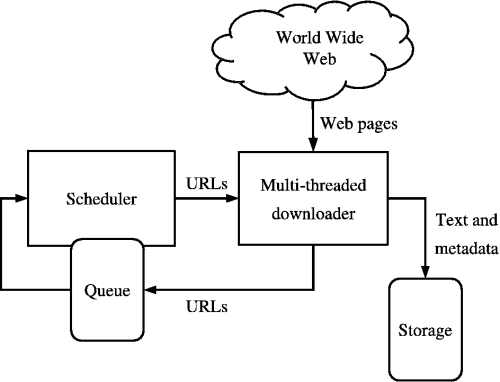
In that fraction of a second after you clicked the button saying “Search,” a spider springs into action, crawling as fast as physically possible to get your information to you in less than a second.  That spider is using all eight of its legs at hyper-speed, but you never see it. What exactly are these web crawlers?

Simply put, they are computer programs that are able to process information methodically and rapidly, adding the relevant URLs to a list of sources, called the crawl frontier. Because the task is done quickly each time, it’s easy to assume that this task is easy. However, there are three characteristics of the web that make it great for users, but horrible for computer scientists who are designing these web crawlers.

One is that there the Internet is constantly changing its content, which means that by the time the crawler has downloaded the frontier, there’s a high probability that those pages have been modified or deleted since the crawler analyzed it. Another is that there are constantly new pages being generated, some in other languages, so the web crawler has to sift through those as well. The third reason is that the Internet’s sheer volume of information, and the crawler has to tailor its findings to suit your search.

Despite the odds against it, the spider is not so easily defeated. It has four weapons to aid it in the battle against irrelevancy: selection policy, re-visit policy, politeness policy, and parallel computing policy.


In selection policy, the bot employs one of three methods to find the “seeds,” or the URLs to be displayed on the frontier, and then analyzes each site individually for relevance. An important algorithm named OPIC (On-line Page Importance Computation) shows promise to make current search engines more effective, but it has not been tested yet on the web. Most of the time, using a previous crawl path to direct a current demand is most effective, which is why Google searches of the same thing look the same. 

                           How the Web Crawler sorts and stores data
In the re-visit policy, the computer has to first have analyzed the original state of the website for relevancy. By the time another search of the same nature is made, if that site has changed in any way, the website is given a value of 1 in binary code, and it moves up in the selection process. If it has not changed recently, the website is given a value of 0. This keeps the most recently updated information in the front of the frontier, which explains how Wikipedia is usually one of the top results.

The politeness policy actually hinders the ability of a crawler to download information in the short term because it prevents multiple crawlers from retrieving the URL at the same time from one server. The server could crash if it has too many demands at once, so computer scientists have put what is called a “crawl delay” on the time it takes the frontier to develop. These delays range in time from 1 second to 3 minutes, although the latter is highly impractical.

Finally, there is the parallel computing policy, which takes a large problem and breaks it down into smaller bits, which are all solved at the same time. The ultimate problem of this policy is it is possible to have multiple downloads of the same page, so to prevent this the crawler will assign sub-URLs on the frontier space.

There is much more to learn and develop about web crawlers, and it remains an important topic in the field of computer science. If you want more information, feel free to Google it, or use this site or view the page as a Googlebot would:

Happy crawling!

Friday, October 8, 2010

Google Scholar

            When one hears or reads the term “Google” in everyday settings, the connotation that pops into his or her head is one of an efficient and well-known search engine that brings together all the websites on the internet for easy access and maneuverability by a normal person searching for information. However, to a member of academia, such as a student or faculty of Johns Hopkins University, such a range of information is not always beneficial for one’s purposes. When resources can vary from articles published in scientific journals to biased blogs written for pure recreation, students may not be able to distinguish between which sources to trust and which to take with a grain of salt.

            Thankfully, Google has come out with a narrower search engine titled “Google Scholar,” accessible at http://scholar.google.com, which allows users to search for scholarly literature over a vast amount of disciplines. Whenever you are researching a scholarly matter, make use of Google Scholar in order to access articles, theses, abstracts, court opinions, and more written by top professionals.

            However, to experience the full advantages of Google Scholar, you must make sure your Google account is linked to the Johns Hopkins library, consequently giving you complete access to the countless resources, scientific journals, and libraries to which Johns Hopkins University’s library has subscribed for the academic benefit of the students. In order to establish the link between your Google account and JHU’s library resources, go to Google Scholar and click on “Scholar Preferences” in the upper right-hand corner of the screen. Scroll approximately halfway down the next screen until you see the section titled “Library Links.” Type “Hopkins” into the search box directly to the right of the title “Library Links” and click “Find Library.” Google will then list directly beneath the search box the numerous libraries and resources to which Johns Hopkins University students, faculty, and staff have access. You may check on all the library access links that are not grayed out. After you finish choosing the Hopkins libraries you want access to, save your preferences at the bottom right-hand corner of the screen. As a result, the next time you use Google Search, you will have access to an exceptionally vast collection of scholarly articles and literature for your research needs. (If Google Scholar will not allow you to choose the Hopkins libraries, you should either link to the libraries while on the Hopkins wireless or wired network, attempt to retry after logging into your JH Portal, or ask a librarian if you are unable to figure it out as they would be glad to help.)

Linking to JHU's Resources on Google Scholar


           Most significantly, connecting your Google account to the Johns Hopkins’ libraries permits you to take advantage of a service named “Find It @ Johns Hopkins Libraries.” Specifically, when using Google Scholar while linked to the Johns  Hopkins libraries, you may have noticed the link “FIND IT @ JHU FullText” show up to the right of multiple search results. Clicking on a “FIND IT” link will take you to the JHU library’s Find It page, where you can find links to electronic databases that contain the full text of the article you searched for through Google Scholar. Consequently, Find It allows you to view full texts of an array of scholarly literature and science journals for one’s research and homework purposes without the hassle of paying for access. Occasionally, you may also see a link directly above the Find It link that refers to a PDF at a particular website. This feature in Google Scholar is available for a small quantity of search results and allows you to view a PDF version of the full article.

Click on the "FIND IT" link if you would like to access the full text of an article on Google Scholar

            In general, Google Scholar is a considerably helpful resource for academic and research-related online searches and should be used to its full potential. With features ranging from allowing you complete access to the range of scholarly literature subscribed to by the Johns Hopkins University Library, importing citations without difficulty to your RefWorks account, offering an advanced search option for narrower and more effective searches, and sorting the scholarly literature by significance, relevance, date, and credibility of the author(s) and publisher, Google Scholar is a hidden jewel for the college student and all others who are associated with academia.

            For more information regarding Google Scholar, see the Google Scholar Help Page.

Monday, October 4, 2010

What is Google Health?

There is not one student here at Johns Hopkins who has never heard of Google. Anytime you need a question answered, the phrase “I’ll Google it” flies from your mouth, and your fingers type the familiar word. What most people don’t know is that Google now has the capability to keep track of your health statistics through its new feature, Google Health.

Since its launch in May 2008, Google Health has helped people across the country proactively monitor their lab results, medication intake, sleep patterns, and even diet progress. In September 2010 it was renovated and made more secure by adding more encryption and requiring a second login upon arrival at the Google Health page.  

Only the patient to whom the information refers has the ability to “share” the information with the people he chooses, whether it be his spouse, child, parent, or doctor. Multiple Health accounts can be linked together, so a mother can monitor her family’s health and doctor’s appointments, or friends can collaborate on their common goals, such as quitting smoking or losing weight. Currently, there are 7.3 million people who use online health records, and an estimated 72.5 million are interested in the idea. Google Health is committed to meeting this high demand.

Google Health was created by employees at Google working on 20% Projects, a policy which allows employees to work on a project of their choosing for 20% of their total work time a week. Other projects that have originated from 20% Projects include GMail and Streetview, two very popular items from Google. Health has even received some funding from the Federal Stimulus Package under the HITech and Health IT grants so the elderly can keep their information in one place for free.

Unfortunately, Google Health is actually losing money for Google because it is not widely used, and also doesn't allow advertisements. Despite this, Marc Donner, the Engineering Director for Google Health, stresses that the goal of Google Health is to make medical information more easily accessible, and not to make money for the company.

Upon entering the Google Health website for the first time, the patient is asked to fill out basic information about him\herself, including weight, height, age, race, blood type, allergies, and medications. This is the beginning of the Personal Health Record, or PHR, that can be shared among hospitals, doctors offices, and other people. Based on what the patient enters, the website will record things like Body Mass Index (BMI), average sleep patterns, and illnesses.

On the right hand side, links to news articles and published research papers related to the subject will appear. For example, if you enter in that you only got 3 hours of sleep last night, scientific studies on sleep deprivation will appear on the side.

The obvious allure of Google Health is that you can keep track of your own medical history from the comfort of your dorm room, and you can see areas where your health could be improved (i.e.: getting more sleep per night, or exercising more). Although there are only a few medical offices actively using Health right now, those that do praise it because it engages the patient more, reduces the confusion surrounding insurance, and allows the doctors to learn exactly which medications the patient needs if he ever has a medical emergency. Google Health is not to be used as a diagnostic tool, but the presence of symptoms recorded on Google Health could point doctors in the right direction in the process of diagnosing a disease.

Google Health is a useful tool for the citizens of an increasingly health-conscience nation, but there are definitely risks to keeping all this sensitive information online. In the wake of identity thefts online, Google has done everything possible to keep health information as private as possible, and is confident that this tool will become an integral part of any medical appointment.

The patients must also take on responsibility and remember to exit their accounts at the end of their sessions. By taking precautionary measures and enforcing their practice, a patient can easily transport data and take on a more active role in his\her own health.

Marc Donner emphasizes that, as of now, Google Health is specifically tailored for the United States medical system, but Google employees are working on expanding it to other nations to allow for international PHRs. For more information on Google Health, visit the home page at:

http://www.google.com/intl/en-US/health/about/index.html

Monday, September 27, 2010

Printing at JHU

If you’re a new student here on campus, chances are high that you’ve needed to print a few things out already, especially if you enrolled in an Expository Writing class this semester. If you or your roommate has a printer in the room, then you can rest assured knowing that you’ll always have a physical representation of your homework, right? Wrong. The inconvenient truth about technology is that it sometimes, for whatever reason, fails. Not all of these problems are permanent, but in a tense situation with time running out, it’s comforting to have a back-up plan.

For all the students who have forgotten or will ever forget to buy computer paper or printer ink over the weekend, Johns Hopkins created not one but several safety nets to assist you. The most easily found printing center is on M Level in the Milton S. Eisenhower Library, about 50 feet away from the Guard’s Desk. Before you print for the first time, you should be sure that you have either J Cash on your J Card or on a printing card, which you can purchase at the Circulation desk for cash or buy from the black box in the Printing Room with a credit card. If you only want to print black and white copies, you can use the main printing room. For color copies there is a room on A Level that you can use instead.

Prior to printing in the Printing Room, you need to tell the printer what it is you want it to print out. Immediately to the left of the red double doors outside the room are three computers that are for one purpose only: to handle all the printing needs of JHU students. These computers have most of the Microsoft products installed on them, and connections to the Internet through the Mozilla Fire Fox  browsers.

After locating your document on the computer, hit the print button. You’ll go through the normal menu items, and after you hit “OK,” you’ll be asked to name your printing job. It’s a good idea to use your last name because you’ll recognize it on a list, and it can be modified with numbers in the case of numerous print jobs.

After you’ve gone through these steps, you can go into the Printing Room and print your documents. Go up to a printer, swipe your J Card or the Printing Card, and the screen will change to a list of all the unfinished print jobs. Look for your print job’s name, check the box next to the job name, and hit the print button. Your account will be charged $0.07 per page; however, the MSE Printing Center prints double sided, so you end up using half the paper that you would have used otherwise.

The Library isn’t the only place on campus you can print either. AMR I, Wolman, and Charles Commons all have their own computer labs, called Residential Computing Clusters (RCC). Each contains nine pcs, two Macs, and two Laser printers, one of which is color. The Charles Commons RCC is equipped with six computers and one printer. The AMR I RCC is open to AMR I and II residents, while the Wolman RCC is open to Wolman and McCoy residents and the Charles Commons RCC to Commons residents.  There are also various computer kiosks around campus that are equipped to handle a quick-print task every so often. These printers require a small fee of $0.06 per page.

Of course, if you for some reason can’t physically get to the library or another printing center, you can always use wireless printing and print it out later. To do this, log on to the “hopkins” wireless network and go through the normal printing option windows. You should still see the “Enter print name” window by which you can identify your print job in the library. Whenever you’re ready to print, Hopkins is ready to handle it. 

http://www.library.jhu.edu/services/computing/laptopprinting.html

Monday, September 20, 2010

ISIS


If you are a student, faculty, or staff at Johns Hopkins University, you have definitely had some experience with ISIS, the Integrated Student Information System. ISIS is a university-wide student information system which is designed for making the technical aspects of being a student simpler for you.

Most notably, ISIS is the online system through which you can register for classes every semester. One may access this feature of ISIS through logging in to http://isis.jhu.edu or accessing the ISIS system through your JH Portal and scrolling over the “Registration” tab in the top left-hand corner. The Registration tab allows you access to all the information you would have to request from a registrar’s office at most other universities. From the “Registration” tab, you have access to your program of study information, the registration system, your class schedule, and your grades. From these sections of ISIS, you can determine your adviser's name, register for classes, swiftly get the last seat for an interesting class after being on the wait list, upload your class schedule to your computer’s calendar, or even view your transcript (including your uncovered freshman grades).

Additionally, the “Financial Aid” tab, located to the right of the “Registration” tab, you can access your relative financial aid information, such as the required forms to complete in order to keep your financial aid and the summary of your scholarship, work/study, and other aid awards. Through the “Financial Aid” section, you can determine the amount of aid you are receiving for the current year, accept or decline aid, and manage all of your financial aid needs.

To the right of the “Financial Aid” tab, you can find the “Billing” tab. The “Billing” section is where you can find your current balance and its due date. Most importantly, the “Billing” section allows you to pay your tuition dues by eCheck, paper check, and view your transactions. Furthermore, if you are like many students, taking advantage of the “Authorized Users” section, accessed by “Billing”-->”Authorized Users”, is an extremely efficient way of allowing your parents to access and pay the balance. Through a simple, straightforward process, you can click “add authorized user” and, within 1-2 minutes, have established an account for your parents or guardians to access the parts of ISIS that you specify, which includes billing, financial, your class schedule, and your grades (but only if you choose to allow them to do so).

Lastly, the “Personal Info” tab is the last of the four tabs and permits you to enter and update your personal information, your emergency contact information, your family information, and your authorized users. Although entering all of this information seems like a hassle, you can not register for classes until all of your required information is established; I wouldn’t procrastinate registering for classes because those seats fill fast!

As more of a postscript, there a few additional features of ISIS that I would like to point out. Your Hopkins ID, which is different from your JHED ID and JCard, is a 6 character alphanumeric ID necessary for confirming your individual identity as a Johns Hopkins community member and is always located at the top of the ISIS screen, right above the “Billing” tab, as shown in the screenshot below. Additionally, there may be an “ALERTS” link on the top right-hand corner, also shown in the screenshot below, that only appears when there is important information for you to know. Finally, the first screen that comes up when you access ISIS is the announcements section. Important information from each section of ISIS (Registration, Financial Aid, and Billing) appears here, so don’t ignore it in order to stay up to date with all your information-related needs.

ISIS Home Page - Hopkins ID and ALERTS are highlighted by a red outline
If you need any help with ISIS, check out the JHU Systems Help web page, accessible at http://help.sset.jhu.edu/dashboard.action, which links to ISIS help pages specific for students, faculty, or advisers.