Tuesday, November 19, 2013

Our Heads are in the Clouds

Cloud-based file storage is particularly helpful to students for several reasons. It allows you to remotely back up files and collaborate with other students. Most of you have used Google Drive and/or Dropbox, both great services that meet this need. But what if you need more space than Google Drive’s 15GB and don’t want to pay more to extend Dropbox’s free 2GB? Or if you want to host your own website? Well, Hopkins has got you covered.

Introducing: JShare

JShare is not a new application, but it is an obscure one. You can access it from your my.jhu.edu homepage after logging in. Hovering over the “Cloud” Quicklink brings up the “Cloud Apps” and “JShare” icons, as shown below:

Bonus Description Pop-up!

Clicking on JShare will open up a tab similar to the one shown here:


You say 'bland', I say 'functional layout'

As you can see, I’m using my JShare space to host my own websites. For all students, but especially those considering doing Web development after graduation, having a website with your resume information is a great way to show off your skills and put yourself on the job market. By default, there is a public_html folder designated for html files, but you can add, remove, and rename folders to your heart’s content by right-clicking. In addition, JShare gives you a fair amount of control over who else can see what is on your space. Right-click on a folder and then select Manage from the drop-down menu. This brings up the settings for that particular folder. On the left is the tab navigator, and after pressing “Permissions” your screen should look something like this:

So much power!


Users are listed under "Name" and their permissions can be set to Viewer or Contributor mode. If you want to remove privileges from a user (or Public), first select the user with the checkbox, and then press the "Remove Access" button. The Add User/Group button allows you to add anyone in the Hopkins network (from what I can tell) to your permitted user list; if the email is not recognized by JShare, it will automatically create a “ticket” for that user that allows them to be given viewing or contributing privileges until it expires. The default lifetime of a ticket is 30 days, but this can be changed or even set to unlimited. You can also assign a password for the ticket, but a password won’t improve security. In order to send the ticket link through JShare, you must first choose to use Mircrosoft Outlook or some other mail client. All ticket-related activities can be done from the “Tickets” tab on the left.

You can also copy/paste the ticket link into any e-mail or FB message.


You’ll also notice Logging and Versioning tabs, but I’ll discuss how to use those in a future post about Online Collaboration. Feel free to leave comments below!

Tuesday, November 12, 2013

JHU Pulse

Hopkins has long had a VPN (virtual private network) system in place for access to the Hopkins internet from a computer or mobile device, even when the device in question is displaced from the immediate Hopkins campuses. A user could download either an Apple or and Android app from the appropriate store, and through use of this app could access the internal Hopkins network. The name of this app is Juniper Junos Pulse. If you've never heard of it before, you are not alone. Soon everyone on campus is going to know of JHU Pulse, so consider yourself one of the most up-to-date people at Hopkins for reading this blog post!

Some of you may have noticed a small notice on the My.JHU.edu dashboard that looks like this:

You may have seen this before, but let's explore what it means.
I first saw this a couple of days ago, so it is a recent development on the Johns Hopkins campus. Let's explore a bit deeper. Clicking on the link it offers take you to a spartan page with minimal information about the new system. The home page of this gives you the option to connect now, assuming that you've already downloaded the new software that's required. If you're partial to the old VPN system (JHUConnect), you are able to access the legacy item through a link at the bottom. 

At the top is a link to the standard Acceptable Use Policies,  also accessible on the IT@JH homepage. In fact, that's where this new website will redirect you. Another link native to the JHU Pulse page is a list of all the systems with which the new Pulse will be compatible. It includes most OS's and browsers, but if you see something listed below, Pulse is incompatible:
  1. Windows 8.1 OS
  2. OSX Mavericks
  3. Windows Phone
  4. Windows XPe (although who uses XP now that Microsoft is officially shutting down tech support for that product?)
  5. Chrome
  6. Internet Explorer 64-bit
  7. Blackberry
  8. Linux (Ubuntu 9.10, 10.x, 11.x and 12.04 LTS, OpenSUSe 10.x, 11.x and 12.1, Red Hat Enterprise 5)
  9. Solaris 10 32-bit (note: 64-bit is supported)
I'm most upset that Chrome isn't a supported browser, given that it's extremely user friendly, but seeing as it operates on the Linux kernel it does make sense. I've also noticed other JHU sites going a bit haywire on Chrome, so maybe it's a recurring theme.

Anyway, clicking the last link on the header of the page will take you to a page that has more links to PDF instructions on how to install the software needed for JHU Pulse on your computer, whatever your operating system is. The pictures displayed in these manuals are from before the summer, which is evident from the login portal screen shot used. This just shows how long this project has been underway, so it's exciting to see it finally come to light!

The installation is very similar to any other installation you've ever done, only this one may ask you to also install something called Juniper ActiveX Control. Juniper is the company that made these products, and the ActiveX Control will allow the VPN to communicate with the interface on your computer. It's critical that this is installed along with the other software or the VPN connection will not stick!

Finally, the page will automatically redirect you to the installation center for the JHU Pulse software. Jump through the installation hoops one more time and then you're done. Congratulations! You are now able to access all of the Hopkins on-site internet resources, including library searches, virtual textbooks, and cloud software from the comfort of your apartment or your distant home, wherever that could be!

JHU Pulse will go into full effect on November 14, after which it is unclear if JHUConnect will be completely removed from the JHU system. I've never had much success with JHUConnect; it was clunky and I could never figure out if I was truly connected or not. This new system promises to be more streamlined and user-intuitive, so I for one am very much looking forward to it. I have to admit: it will be nice to be able to access Web of Science from home over Thanksgiving Break!

That's it from the TechBlog for this week. As always, good luck on exams and leave your comments in the space below.

Tuesday, October 15, 2013

Microsoft System Center Endpoint Protection

Throughout the day, we are constantly under attack from malware. An email attachment from an unknown source, a hidden file on a flash drive, or a download from a less-than-reputable website can all give your computer malware. Malware – viruses, worms, Trojans, spyware, etc. – makes your computer behave strangely; they can slow down your computer or steal personal information. In the worst cases, they can destroy your precious data and even “brick” your computer. According to IT at Johns Hopkins, “Even careful and conscientious users can have malware on their computers.” So what steps can you take to avoid losing your homework, notes, and other valuable data?


I would wash my hands after using the computer if I were you.
http://www3.pcmag.com/media/images/317665-computer-malware.jpg

In the past, IT @ JH has provided Symantec Endpoint Protection to students as a way to protect against malware, but this has changed recently. Hopkins students are encouraged to uninstall Symantec and download Microsoft System Center Endpoint Protection instead. The links for downloading the proper anti-virus software can be found here. Simply click on the option that applies to you, and when you are prompted, enter your JHED and the password you use for the Portal. I use Windows, so the next steps may or may not apply to you. Once the download is complete, unzip the file and run “SCEPInstall.exe”. The installation wizard should pop up, and will give you other instructions. Make sure to check the box that turns on Windows Firewall if you don’t have a firewall already turned on. Finally, click “Install”, and then “Finish”. At this point System Center will begin its first scan of your computer. This can take a while, so do some homework while it runs.


Or go watch a movie. It takes A WHILE.


Once that is done, you should make sure that Symantec is uninstalled. The Windows version automatically removes prior Symantec, McAfee, and TrendMicro products, as well as Microsoft Forefront Client Security / Endpoint Protection AV agents, but if you are having trouble, or installed System Center for a different OS, you can find help here.

IT @ JH also suggests further steps to protect your computer, such as updating Adobe Acrobat Reader, Adobe Flash, Java, and Microsoft Office. Updates patch up weaknesses that can be exploited by newer forms of malware. You should also consider using a second anti-malware tool, since some threats may get ignored by the first one. There are many options, but my personal favorites are AVG, HitmanPro and MalwareBytes. HitmanPro is unique in that it is specifically geared towards being a “second opinion” anti-malware tool. And according to their website, “If nothing is found (and we sincerely hope so), then you will never need a license. When a virus is found, then you will receive a free 30-day license to remove the threat.” MalwareBytes, on the other hand, is critically acclaimed for its ability to find deeply entrenched malware and remove them for you. However, its free version is not great as a stand-alone anti-virus software, which is where AVG Free excels. Downloading and running it is easy, and two scans are better than one.

Nowhere is safe for viruses now


For the most part, the switch from Symantec to System Center won’t affect your daily life. Both are powerful, fast solutions for endpoint protection. From Microsoft’s website, System Center “protects against both known and unknown threats with a combination of highly accurate signatures and behavioral detection techniques. It has been highly ranked in independent third-party tests, such as those by AV-Comparatives and VirusBulletin, with special distinction for its low false positive rate.” According to Symantec’s data sheet for version 12.1.2, “Endpoint Protection detects more threats then [sic] do products from McAfee®, Trend Micro™ or Microsoft®1 […][and outperforms] all products in its class in scan speed and total performance impact.2

System Center was most likely chosen because of its superior support for management of a large enterprise like Johns Hopkins. The System Center website also claims to reduce “IT management and operating costs” by using a single integrated infrastructure. While Symantec may have been a slightly faster and more dependable anti-virus solution, I can understand why the choice was made. Beggars can’t be choosers; I’ll take my free endpoint protection without complaints.


1AV-Test.org, “Real World Testing.” For Endpoint Protection, August 2012
2Enterprise Endpoint Protection Performance Benchmarks, PassMark Software, August 2012

Tuesday, September 24, 2013

Hopkins Hosts a Hackathon

Last weekend the Johns Hopkins University hosted its first Hackathon, a 36 hour long competition where teams of 1-4 students were asked to create a smartphone app and present it. The winning prize of $1024, or the equivalent of the number bytes in a kilobyte (2^10), went to a sophomore team of Brian Ho, Ben Lu, Willis Wang, and Miles Zhan. Their app, called "DropMe," is a play on a picture and message sharing application like "Bump." This new app is location-aware, meaning that it can be dropped into a different on-screen location based on the GPS reading of the mobile phone.

The competition began with opening ceremonies on Friday night, but the real work started at 9 pm and lasted until 9 am on Sunday morning. The contestants were supplied with Red Bull energy drinks, ice cream, pizza, Mountain Dew, coffee, bagels, and anything else they needed to keep themselves awake. As if that wasn't hard enough, the teams that completed a project were then expected to present them to a panel of expert judges. This panel was made of three Hopkins CS professors, Devon O'Dell from content delivery network Fastly, and John Bienko of the U.S. Small Business Administration.

Alex Monroe, a junior at Hopkins, worked on a app called "Riffmaster," which used sound frequency signals from a guitar to control computer programs. In essence, they made the instrument a keyboard! From http://www.baltimoresun.com/news/maryland/education/blog/bs-md-jhu-hackathon-20130922,0,1736133.story

The sponsors of the program ranged from internet giant Facebook, for which student organizer Nate Schloss worked as an intern last summer, to alumnus Michael Bloomberg's company, Bloomberg L.P., to GitHub, EPIC, and the Social Innovation Lab right here at Hopkins. Facebook had a separate prize that went to a graduate student team which created an app that would allow event organizers to sell tickets to the event over Facebook. This Facebook Concerts app, created by Rahil Arora, Ankit Sharma, Nishikant Deshmukh, and Saramjeet Prasad, also took 3rd place overall. 2nd place was secured by team of Farhan Damani, Blaine Muri, and Jason Albalah for "SuperScale," an app that turns an iPhone into a scale.

Daniel Swann, an employee right here at Student Technology Services, was one of the students who worked tirelessly over the summer to organize and execute this event. He, along with Ben Glickman, Nathan Schloss, and Tyler Cloutier, believe the event went so well, they'll be repeating it again next semester.

"The winning hacks were extremely creative and well polished, and I felt that the winners definitely deserved their prizes. It was amazing to see so many innovative ideas developed over this short 36-hour period. I could even see some of the projects possibly being spun off into startups or independent studies," said Swann.

Some of these focused on the homeless population in cities across the country by allowing smartphone users to look up shelters and soup kitchens based on their current locations. Another allowed a user to get a reading on how safe an area of Baltimore is based on location and time of day. Given the increase in crime in Baltimore this summer, it's not a bad idea. A third, more academic app allowed a user to take pictures of old maps and automatically tie them together into a large mosaic. Matthew Petroff worked as an individual and produced a 1915 map of Hopkins' Homewood campus for his presentation, according to the Baltimore Sun.

Nate Schloss, one of the student coordinators for the Hackathon, worked at Facebook as an intern last summer. Facebook was one of the major sponsors of the event. Congratulations, Nate!
This is an amazing example on the Hopkins campus of the initiative and collaboration that is a key feature of the Hopkins atmosphere. Hopkins is known for challenging its students, and there is nothing more challenging than producing excellent work in a short span of time with hardly any rest. Then again, that's the reality for many students on a day to day basis.

Over 130 students on 50 teams participated in the success of this event, and only 25 teams were able to present a finished product after 36 hours. That's an amazing accomplishment against incredible odds, and each student who was in some way connected to HopHacks should be very proud of themselves.

Special thanks to the Johns Hopkins HUB, The Baltimore Sun article written by Luke Broadwater, and Nate Schloss for their quotes and information. Best of luck for the next event, and thanks for reading!

Tuesday, September 17, 2013

New JHU Outlook Email Format

Hello Hopkins!

The TechBlog is going to take a short break from the FrontDoor Software to talk about a topic that has captured the attention of most students on campus. I'm talking about the new Outlook email layout, which hit our corner of the internet over the weekend. It's actually more accurate to call it a new Web App, since the Outlook we use is not the same as the Outlook software.

The new layout mirrors the changes that Microsoft made over the entire Office 2013 Suite. The top bar is blue, instead of the soft orange design that doodled its way around our screens before, and the design is more angular and sharp. The old dinging sound of receiving a new email has been changed to a two-tone quip that sounds more soothing and melodic than the old one. Overall it fits better with the new JHU layout that came into play on September 3, and since the main features are the same, it shouldn't be a major switch.

Still, there are some features that have been getting mixed reviews from the students. One student commented that it looked too plain, and another had an issue scrolling to the stop of the screen to hit the send button. She ended up having to delete the email she was writing because Outlook had some kind of glitch. It could just be the web browser she was using, but it's worth noting that particular issue.

Color is noticeably absent on this version of Outlook; the old version had the buttons for Reply, Reply to All, and Forward colored differently. They are all gray now. There also used to be a way to group your emails according to a small color bar on the right hand side of the email preview box, which has been removed from this version. It's also more difficult to tell which email is new and which has already been read, because the only thing distinguishing the two is the color of the (small) subject line. The new ones are blue, and the read ones are gray. Not the most exciting or eye-catching item, but at least there is a new option on the top to look at "Unread" emails, which separates them for you. Emails that have drafts associated with them say "Draft" in orange letters, and that stands out.

The options appear when multiple emails are selected.
Now onto the good features. A feature I accidentally stumbled upon was that it has a built in "smart" calendar system, which reads through your emails and puts events that you make through the Starfish scheduler in your calendar for you. This was especially helpful to me today, because I had totally forgotten about a meeting I had scheduled. I'm glad the email remembered. If anyone sends you a meeting request, there is an option within the email that allows you to schedule a meeting with one click. It will check your availability for you and report back before making any changes. This is a seamless feature that will actually come in handy if the Calendar function is used often.

It's also possible to delete multiple emails at the same time, although there is still no way to click your entire Inbox and delete everything at once (Outlook developers: take note of Gmail's features to isolate certain emails and perform mass actions on them). Just move the mouse to the upper left corner of the email preview box and click the box. Clicking on one email allows you to view it in the large window, but unchecking the box just clears the entire screen, a new feature. Clicking on multiple emails brings up a new option window in the main part of the screen, and here there are options to delete the selected conversation.

The personal information page for a user on Outlook 2013. The mail button allows you to send an email, and the calendar logo schedules a meeting with the contact
 Finally, there is an easy feature to view basic information about an email contact. Simply click on the name and a window will pop up, with small symbols that allow you to email them or schedule a meeting. It's a nice integration of different Outlook features all compiled into a simple arrangement.

Most of the other features are pretty self-explanatory and located in the same places as the old version. It doesn't take long to get used to the new features and layout, so don't be afraid to use it more often. Leave your comments below for what you think of the new design, and we'll see you next week!

Tuesday, September 10, 2013

FrontDoor Anti-theft Protection Software: Windows Edition

Every Hopkins student receives the daily Incident Reports from Campus Security, and somehow the addition of these emails made crime more noticeable in our lives. Despite the warnings to be vigilant and reminders to keep personal belongings with you at all times, it is a sad truth that our cash, debit and credit cards, and phones are still stolen on an almost quotidian basis. A laptop is, perhaps, the most devastating item to lose because it undoubtedly is home to irreplaceable pictures, essays, and research data. This can sometimes result in a loss of years of work.

It is impossible to know when you will be the victim of a crime, and it can happen to anyone. Hopkins Security knows this, so they have discovered a way for students, faculty, and staff to maximize the chance that stolen computers will be returned to their rightful owners. In fact, if you have read the Daily Incident Reports this week, Monday's mentioned something called FrontDoor Software. To download a free copy of the software and protect your computer, go to frontdoorsoftware.com/jhu right away. Make sure to use your @jhu.edu email! Having this software increases your chances of recovering your laptop from 3% to as much as 95%. For free, it's worth having.
This is the FrontDoor logo. I think the dog is a Newfoundland. 

FrontDoor Software Security is a program that uses a registered computer's wireless connectivity to track its movements, which is similar to other recovery programs. FrontDoor allows an owner of a stolen computer to log in to another computer to report the stolen laptop. At this point, FrontDoor will turn on its arsenal of unique features and start the recovery process. Once the computer is connected to a wireless network, the Skyhook Location SDK will quickly obtain the location of the laptop, and you can actually see the last known location of the computer on the user interface screen at FrontDoorSoftware.com.
The list of locations where FrontDoor has registered my computer.
Skyhook Location SDK is able to obtain the location within 4 seconds, a fact that I have verified through my own experimenting with FrontDoor. It's also accurate to within 10 meters, but this accuracy is diminished when inside a large building (of which there are many around the Hopkins campus). Finally, Skyhook boasts a 99.8% availability, which means it can work at almost any time. The coverage around Baltimore is very high, as expected, but this is not the case everywhere, so check availability at your permanent residence. 

The features of FrontDoor are pretty simple to enable; simply go to the user interface login page, go to the directory, and hit the "Stolen and Lock" tab. Click the edit button to mark the stolen and lock boxes, depending on what you prefer to do. By remotely locking the stolen computer, you protect your information from the thief. By reporting it stolen, on the other hand, you set off a series of events. First the computer will display a message with your contact information, just in case it was all an honest mistake, and Campus Security picked up what they thought was an abandoned device.

The Stolen and Lock screen. Don't forget to hit the Update button!
To deter a real thief, the computer equipped with FrontDoor Software will then actually start to make loud noises, shouting phrases such as: "Help! This computer has been reported as stolen or lost!" and "You are not my owner! Return me now!" If the culprit has taken the computer to a public place, this will certainly attract attention, and the suspect will most likely flee the scene without the laptop. An honest person can then come up, view your contact information, and alert you to the location of the laptop.

Once a computer is reported as stolen, Campus Security is also informed of the situation and will be notified.

Overall my review is that FrontDoor software has a few kinks in it, and whether that stems from design flaws, incorrect installation, or lack of knowledge regarding the software itself has yet to be determined. It would be a good idea for Hopkins security and IT Services to both become more acquainted with the software so they can help students use the software effectively. Considering that this service is free for students and faculty, and that the location services are very impressive and accurate, every student should install this on his or her computer. It could make a difference one day, and that's a chance I'm willing to take.

Wednesday, September 4, 2013

Free Stuff for Students!

Welcome to the first week of classes, fellow students! I hope your summers were relaxing and/or productive, and that your class schedules are not too hectic and stressful. Just in case they are, however, the TechBlog has some shortcuts so you have a fewer number of items to juggle in your life.

Most people on campus have known about the Hopkins Technology Store for a while, unless you're a new freshman (for the record, it's on the first floor of Krieger, connected to the computing lab). Chances are good that most of you have never had a reason to go to it, especially if you have a PC.

That's about to change.

Possibly the greatest debate of our generation. From here
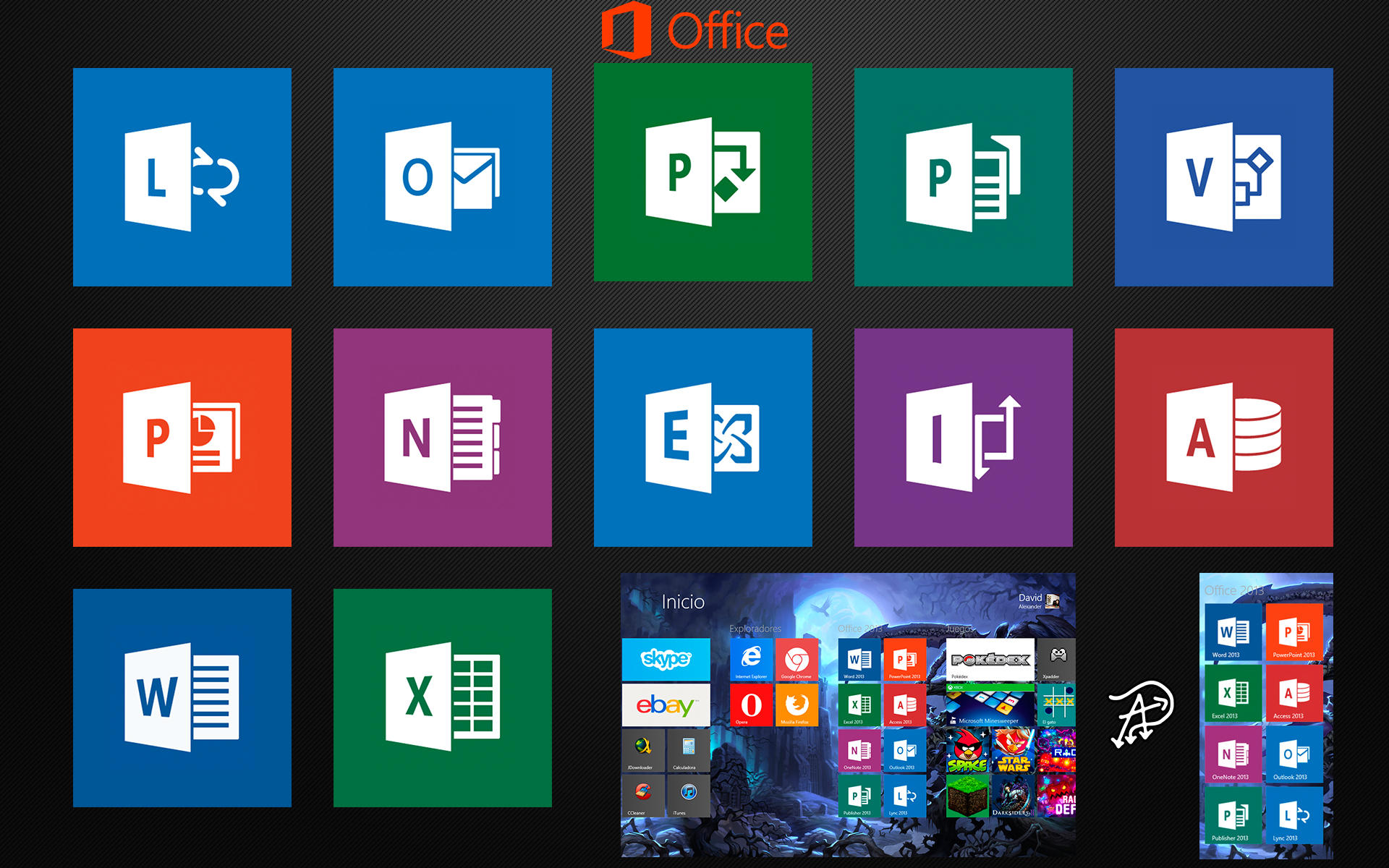
The Hopkins Technology Store does more than sell Macs and Apple products: it has free software available to every student on campus. This includes Microsoft Windows 7 and Windows 8 OS downloads, Office 2013, Office 2011 for Mac, and Office 2010 for absolutely no cost to students, and at a discounted rate for faculty and staff. The suites don't skimp either; PowerPoint, Excel, OneNote, Publisher, Outlook, and video conferencing software is included in the downloads, among other items.
All this for free! From here

Microsoft Office is probably the most useful tool to any college student, next to the computer on which the software is installed. Everyone will have to write at least one essay while here, and with the rising cost of tuition, books, and food, a penny saved is a penny earned. Save yourself $130 and download the free Office 2013 suite, and maybe a new OS on the side.

In addition to Microsoft products, the Tech Store also has Adobe Creative Cloud ($20), Parallels Desktop 8 for Mac ($40), SPSS packages (prices vary from $42 to $106, based on the edition) for Windows and Macs, and lots of other products that range from HD video converters to antivirus software. For the software that's not available for purchase and download, there's always myJLab, a VDI which allows you to have a temporary user profile on a Windows OS with access to MatLab, Mathematica, SPSS, and other  helpful tools. For more information, see this blog post from last year. This little advertised service offered by Hopkins has been around for a while, so take advantage of the discounts Hopkins provides and get some high tech equipment on your machine!

In addition to software and Windows OS editions, the Tech Store also boasts "the best pricing available for Apple recommended systems for students and parents!" If you're thinking about getting a new Mac computer, consider stopping here first to get their bundle packages, which include the warranty guaranteed by the Hopkins Tech Store. It's much easier to get your computer fixed when the repair desk is right on campus, and currently they're expanding the iOS repair system. More students helped means less time sitting in the library, cursing your bad luck and scrambling to finish that lab report.

See? They really do say it word for word.
For those of you who prefer PCs, the Tech Store also offers links to Dell laptops via the mobile computing program, and the HP Academy feature, which allows you to purchase the newest HP laptops and computers for about $100 less than the normal price. That's enough for a textbook or two, and I bet the parents would enjoy the lower prices.

Of course, for the hardware needs for all students, the Tech Store also has a great selection of Apple products, including the iPad 2, iMacs, and Apple Care Packages. For those of you who are looking to get a bit more out of Hopkins, the Tech Store is also hiring new students who are passionate about technology and resource assistance. Check them out at the Student Employment Job Fair on September 13.

In the near future, the Tech Blog will be looking closely at some of the esoteric software offered by the Tech Store, especially one called FrontDoor, which is supposed to protect your computer's information in the event of theft and increase the probability of its recovery. That's next time.

That's it for the TechBlog this week. Happy first week, and let's have a great semester!